Triage signals
1
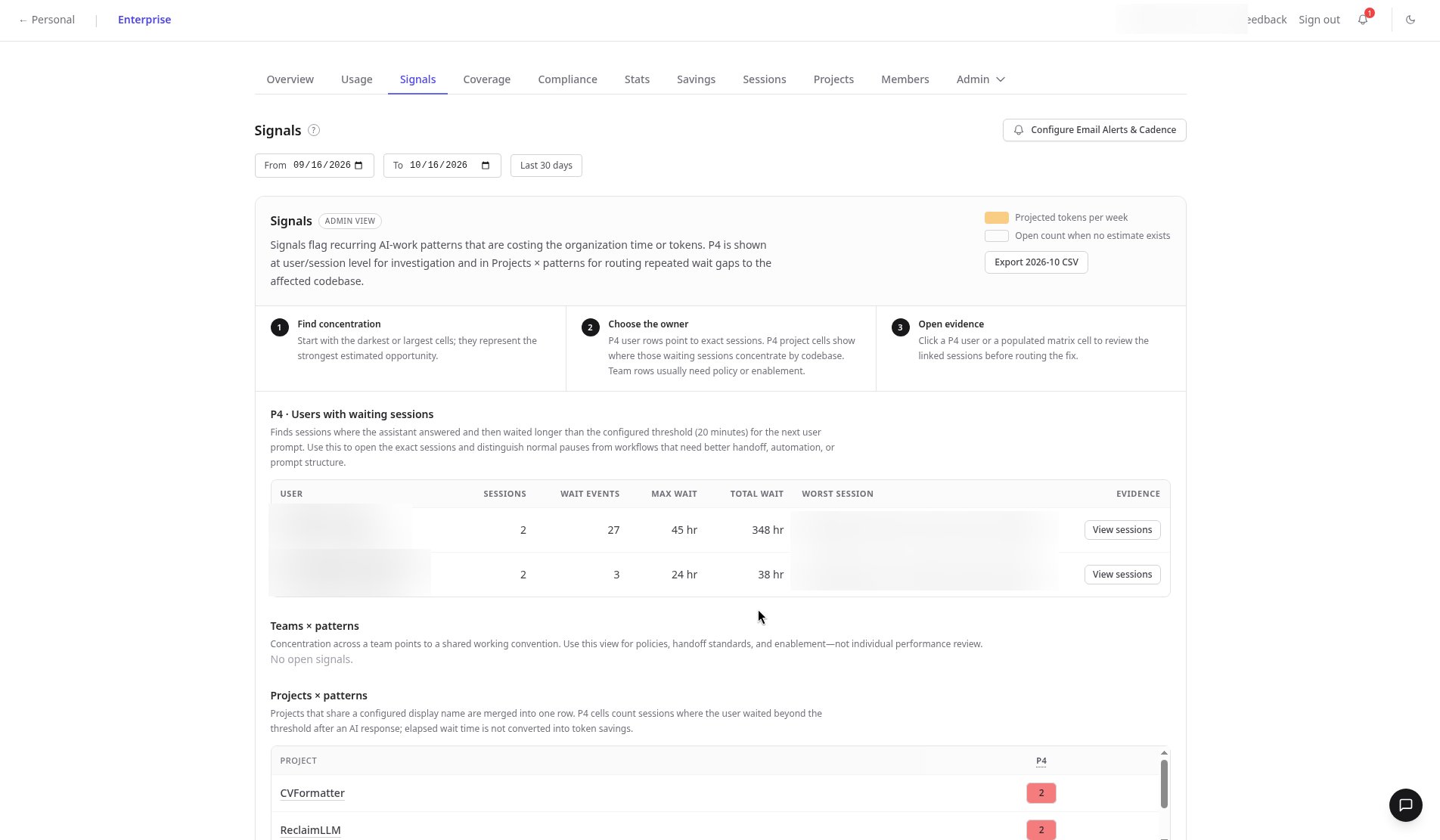
Find where issues concentrate
Start on the Signals overview. The Projects × patterns matrix shows which projects keep hitting the same problem, such as long idle gaps in sessions.
2
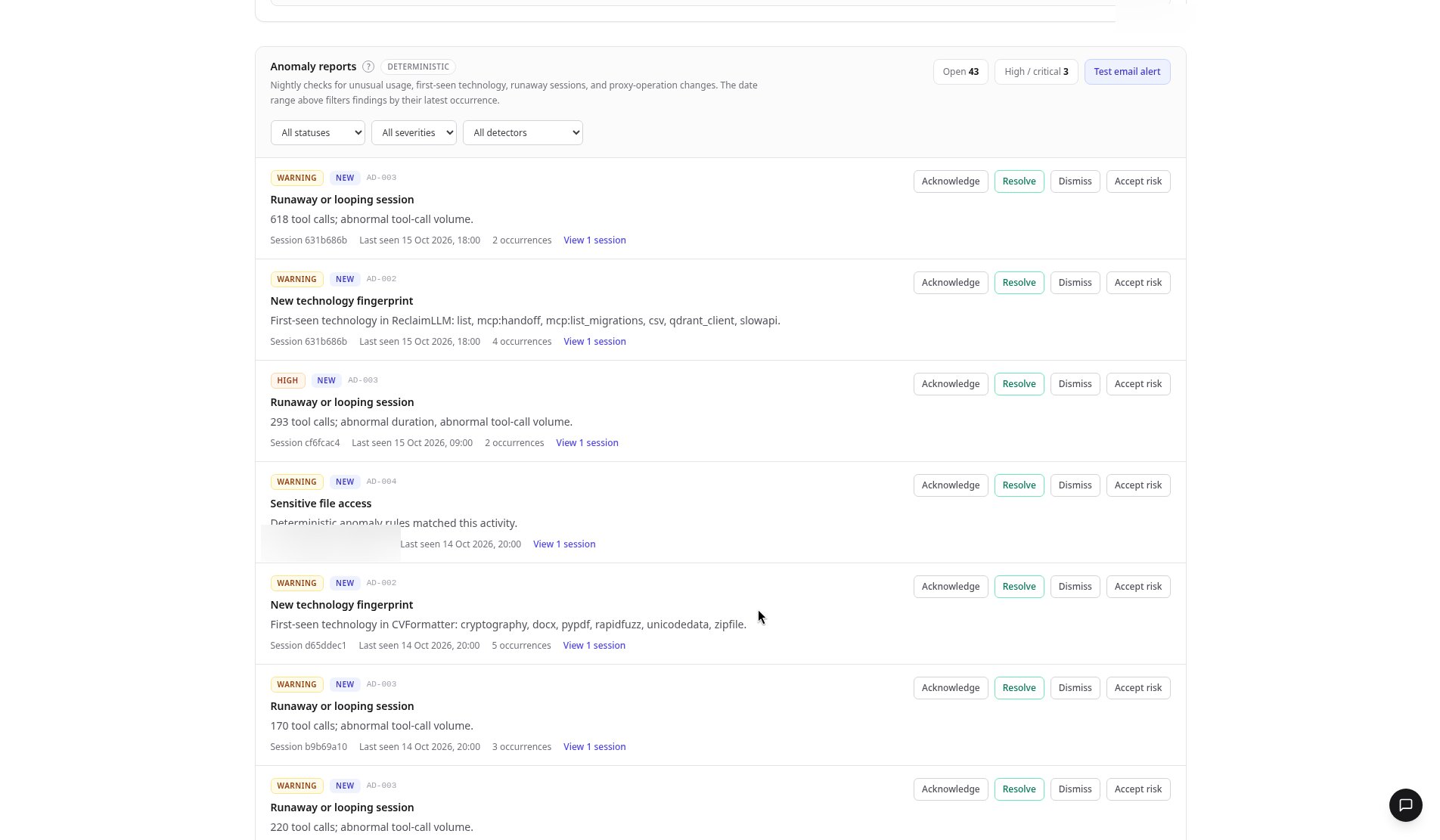
Filter anomaly reports
In Anomaly reports, filter by status, severity, or detector. Filter to High severity to triage what matters first.
3
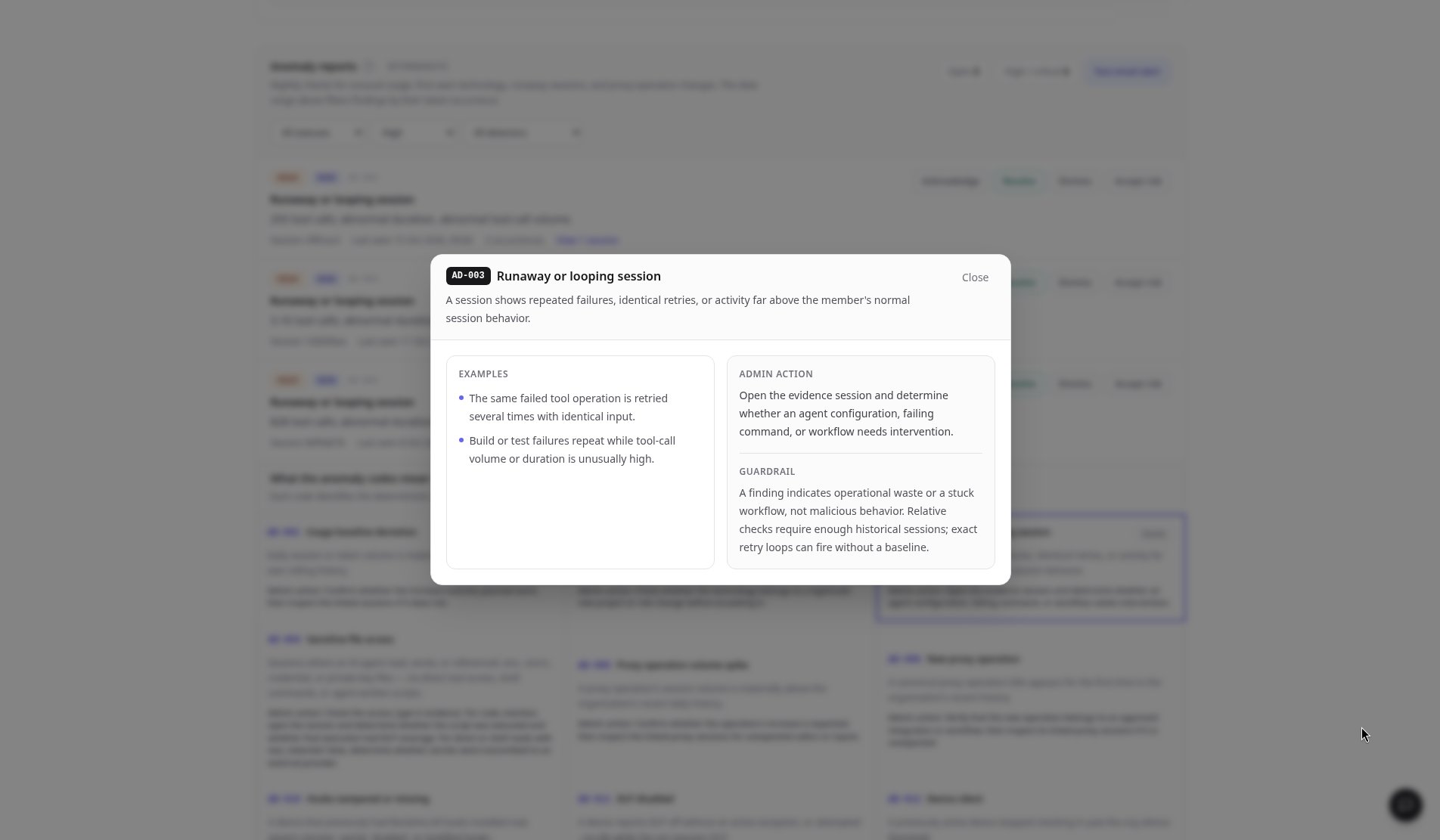
Look up an anomaly code
Open any code in What the anomaly codes mean (AD-001 to AD-012). Each explains what it looks like, what an admin should do, and the guardrail to set.
4
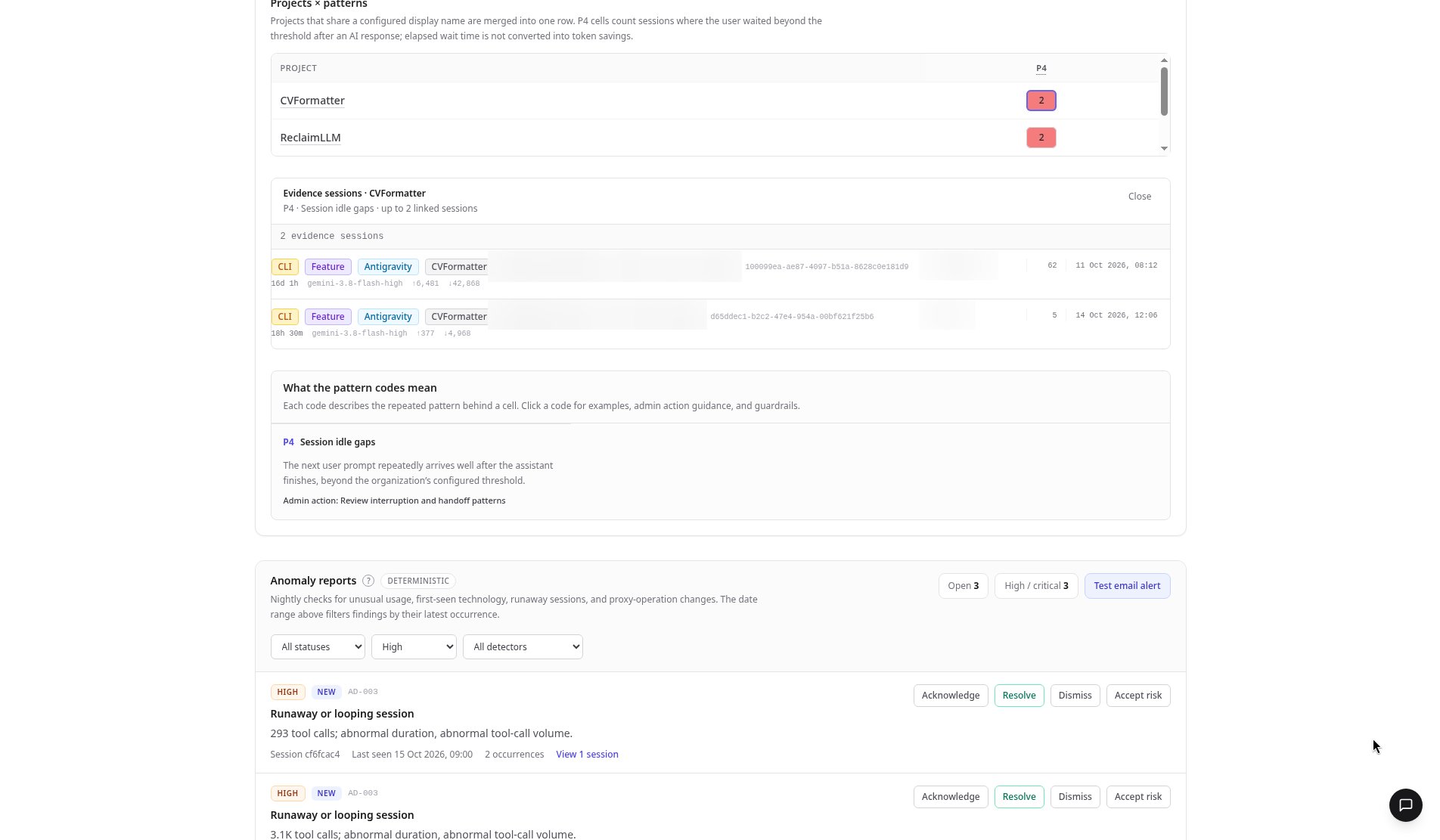
Open the evidence
Click a matrix cell to jump to the evidence sessions behind it.
5
Act on each finding
Acknowledge, Resolve, Dismiss, or Accept risk on each report.
FAQ
What does AD-003 mean?
What does AD-003 mean?
AD-003 is a runaway or looping session. The code detail explains what it looks like, the admin action, and the guardrail to set.
How do I see only the most important findings?
How do I see only the most important findings?
Filter Anomaly reports to High severity, then work through them with Acknowledge, Resolve, Dismiss, or Accept risk.
Can I get from a pattern to the actual sessions?
Can I get from a pattern to the actual sessions?
Yes. Click any cell in the Projects × patterns matrix to open the evidence sessions behind it.
Related
- Reference: Signals tab
- Product: Enterprise observability