> ## Documentation Index
> Fetch the complete documentation index at: https://docs.reclaimllm.com/llms.txt
> Use this file to discover all available pages before exploring further.

# AI Assistant Audit Log: Filter and Export Admin Activity

> Use the ReclaimLLM audit log to filter admin and sensitive-access events, inspect event details, and export to CSV, with 365-day retention.

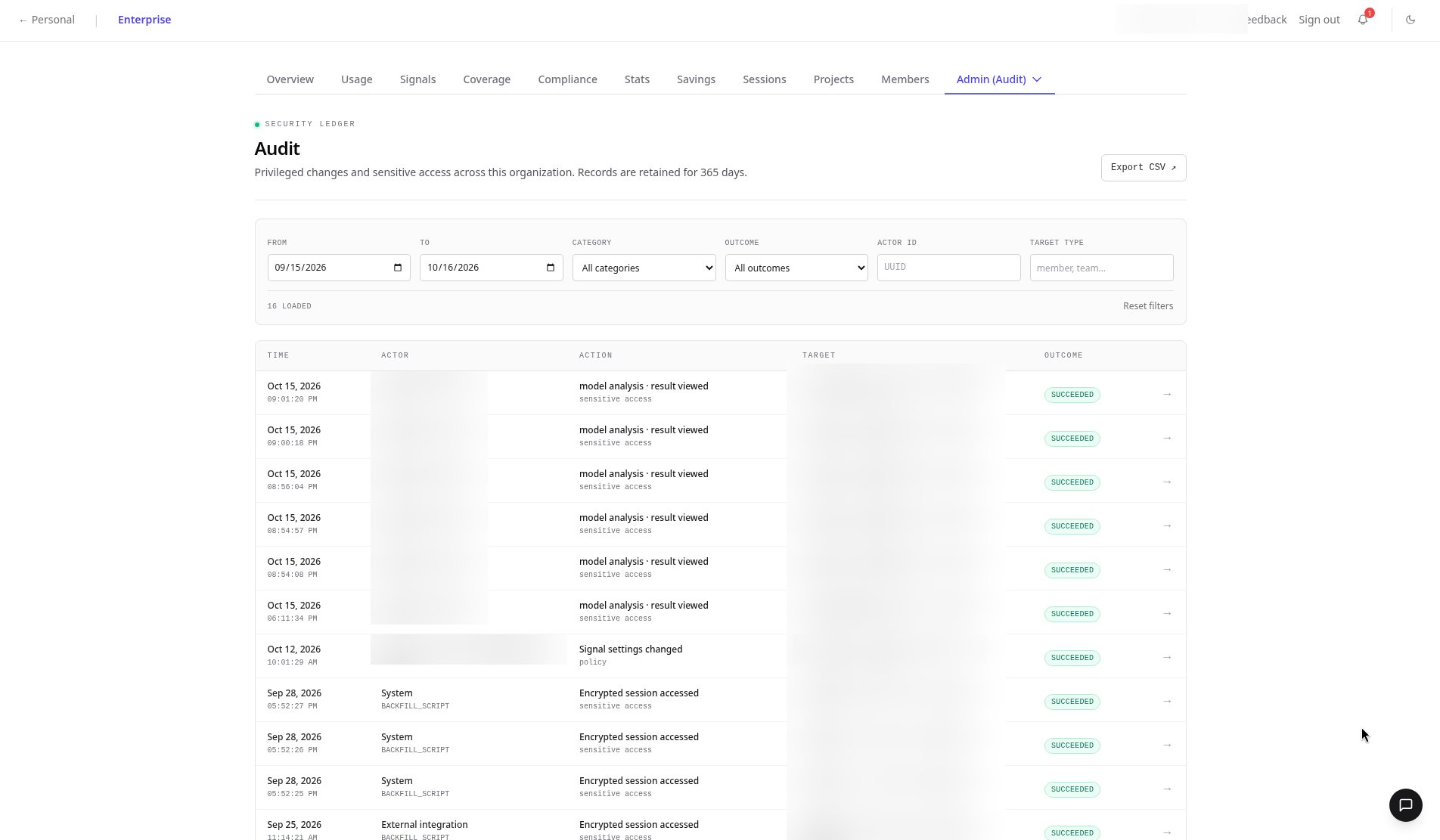
Who changed that policy? Who viewed sensitive sessions? The audit log is a security ledger with 365-day retention that records admin actions and sensitive access, such as viewing model analysis results, encrypted session access, gateway model tests, provider syncs, and billing changes.

<div style={{ position: "relative", paddingBottom: "56.25%", height: 0, overflow: "hidden", borderRadius: "12px" }}>
  <iframe src="https://www.youtube.com/embed/ujYTo5ZHgZQ" title="AI assistant audit log in ReclaimLLM" style={{ position: "absolute", top: 0, left: 0, width: "100%", height: "100%" }} frameBorder="0" allow="accelerometer; autoplay; clipboard-write; encrypted-media; gyroscope; picture-in-picture" allowFullScreen />
</div>

## Investigate and export events

<Steps>
  <Step title="Set the date range">
    Pick the period you want to review, for example 15 Sep – 16 Oct 2026.
  </Step>

  <Step title="Filter the table">
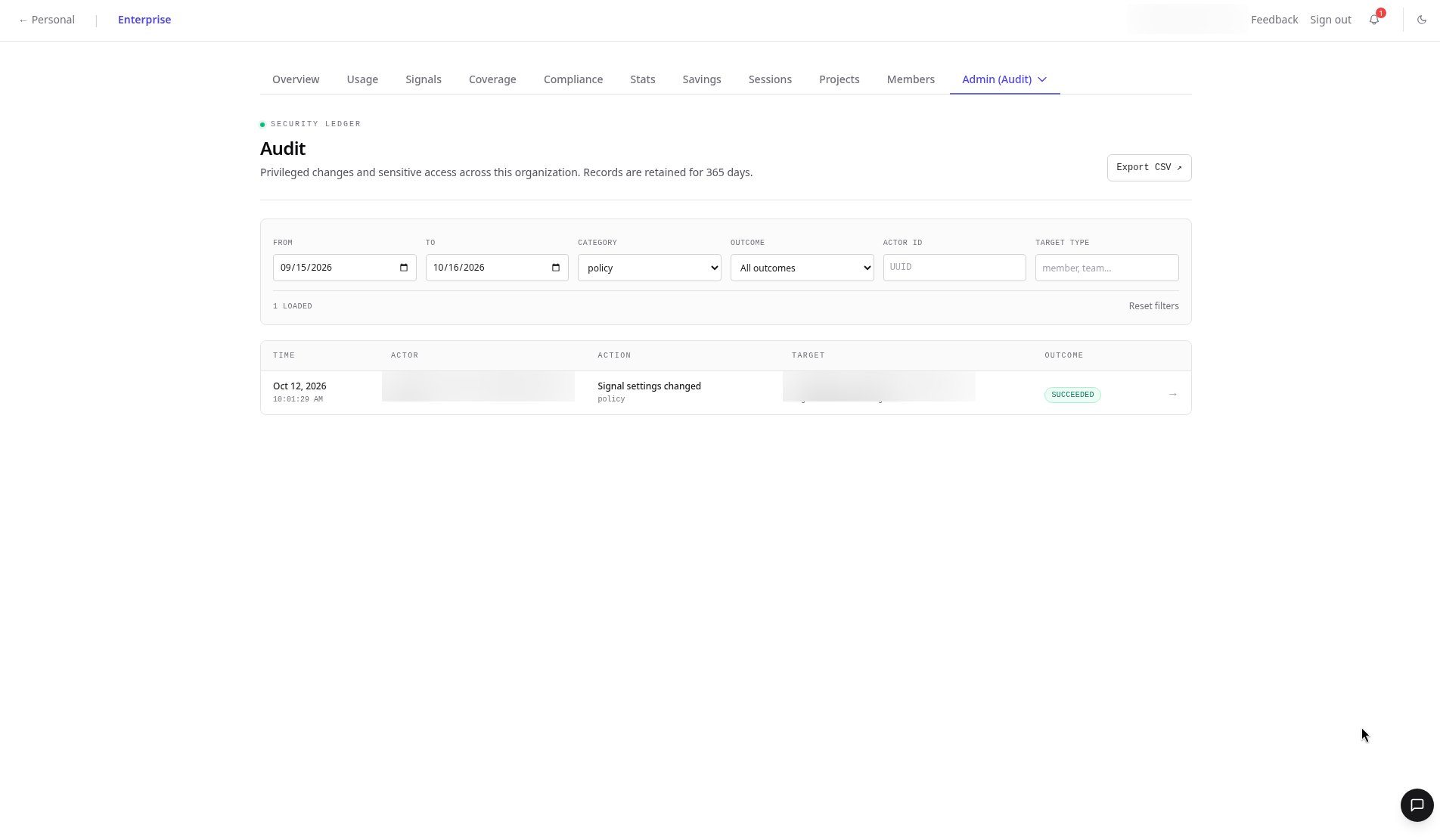
    Filter by category, outcome, actor ID, or target type. Choose the **Policy** category to isolate policy changes.
  </Step>

  <Step title="Open an event">
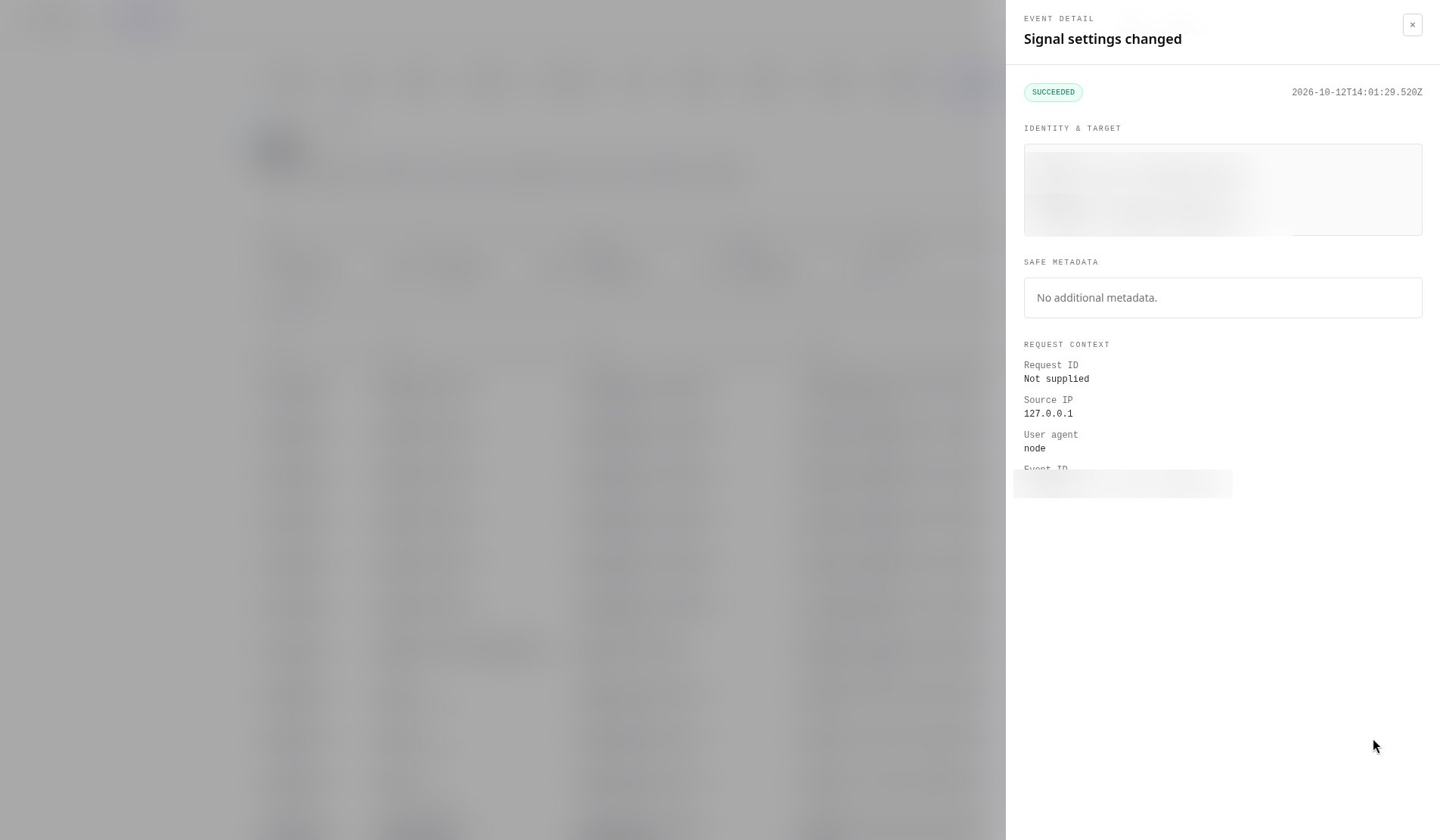
    Click any event to open its detail drawer: outcome, timestamp, identity, target, metadata, and request context.
  </Step>

  <Step title="Export to CSV">
    Click **Export CSV** to download the filtered events for your security review.
  </Step>
</Steps>

<Frame>
  <img src="https://mintcdn.com/rclm/WtR7t-MmlL9aspx4/images/admin/audit-log/01-audit-header-filters-table.png?fit=max&auto=format&n=WtR7t-MmlL9aspx4&q=85&s=a10c32c0a4465bc7d0e3b0b195f6b18e" alt="Audit security ledger with 365-day retention, date, category, outcome, actor and target type filters, Export CSV button and event table with actors blurred" width="1904" height="1111" data-path="images/admin/audit-log/01-audit-header-filters-table.png" />
</Frame>

<Frame>
  <img src="https://mintcdn.com/rclm/WtR7t-MmlL9aspx4/images/admin/audit-log/02-event-detail-signal-settings-changed.png?fit=max&auto=format&n=WtR7t-MmlL9aspx4&q=85&s=db927c4cf33a71364e81ae4aa7d5e947" alt="Audit event detail drawer for Signal settings changed showing outcome, timestamp, identity, target, metadata and request context" width="1904" height="1111" data-path="images/admin/audit-log/02-event-detail-signal-settings-changed.png" />
</Frame>

<Frame>
  <img src="https://mintcdn.com/rclm/WtR7t-MmlL9aspx4/images/admin/audit-log/04-category-filter-policy.png?fit=max&auto=format&n=WtR7t-MmlL9aspx4&q=85&s=8f924a6c8eb9506a5caa3a4eb963bfa3" alt="Audit log filtered to the Policy category showing one matching event" width="1904" height="1111" data-path="images/admin/audit-log/04-category-filter-policy.png" />
</Frame>

## FAQ

<AccordionGroup>
  <Accordion title="How long are audit events kept?">
    365 days.
  </Accordion>

  <Accordion title="Is viewing sensitive data logged?">
    Yes. For example, viewing model analysis results is recorded as its own sensitive-access event, as is encrypted session access.
  </Accordion>

  <Accordion title="Can I export the audit log?">
    Yes. Apply filters and click Export CSV.
  </Accordion>
</AccordionGroup>

## Related

* Reference: [Audit tab](/enterprise/dashboard/audit)
* Product: [Security & compliance](https://reclaimllm.com/solutions/security-compliance)


This documentation is built and hosted on [Mintlify](https://mintlify.com), a developer documentation platform.